Meshtastic lets small radios pass short text messages to each other with no mobile signal and no internet. It is an extra for people who like to set things up. It does not replace your phone, a battery radio or 999.
Try it before you need it
Set up two or more radios with the people you plan to message, and send a few test messages while the power is on. Every radio in the mesh needs matching settings, so do this together.
- Agree who has a radio. Messages reach only the members of your mesh.
- Charge the radios when you charge your phones. See keeping your phone going.
- Write the settings down on paper: region, channel name and key. You need the same ones on every radio.
In an emergency, call 999 from a phone. Meshtastic messages go to the members of your mesh. Do not rely on it to reach the emergency services. See keeping your phone going for 999 when your own network is down.
What it is
The Meshtastic project describes it as a way to use inexpensive LoRa radios as an off-grid communication platform where there is no existing or reliable communications infrastructure. LoRa is the radio technology the radios use.
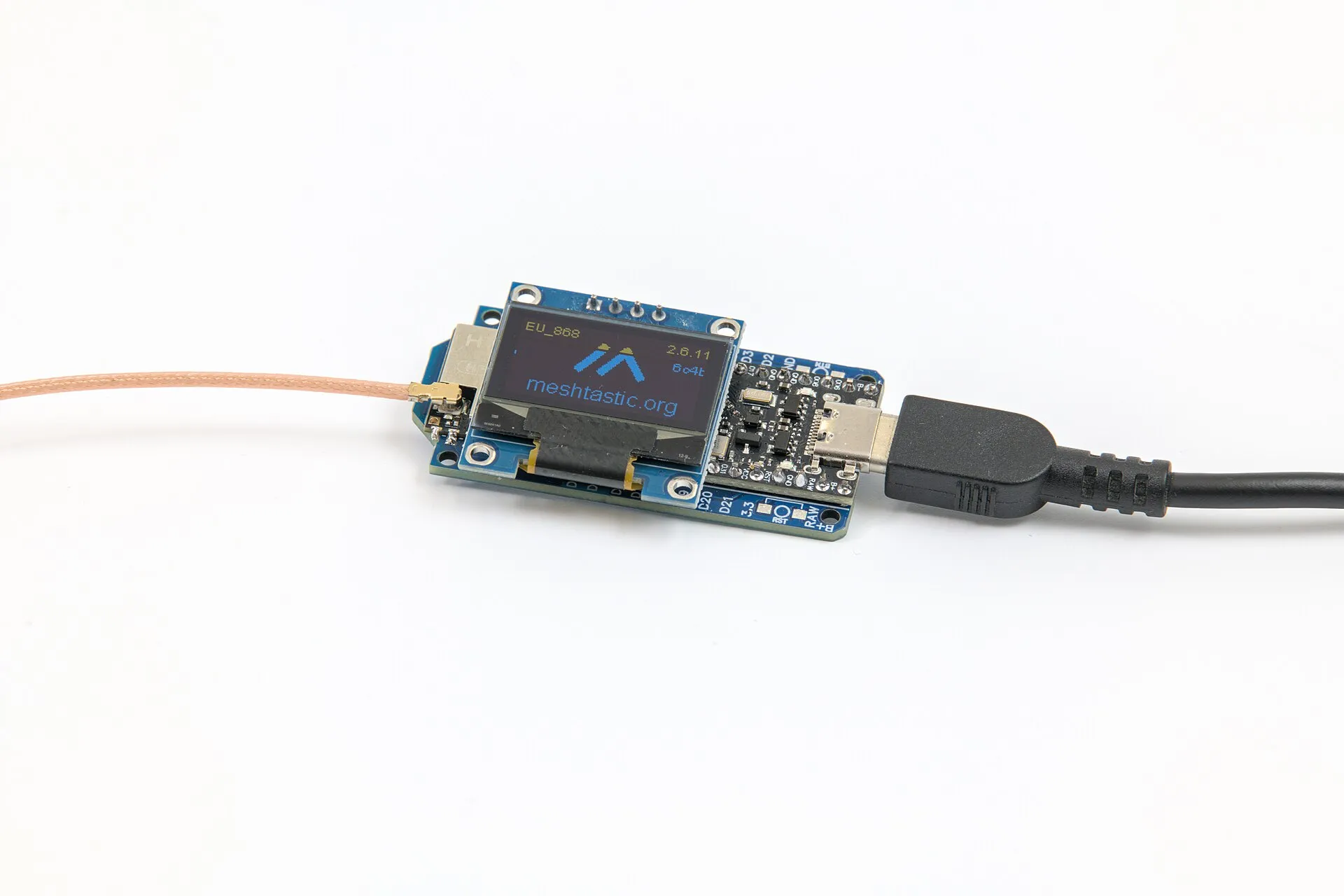
Each radio is called a node. You connect a phone or computer to your node by Bluetooth, Wi-Fi or USB, and write and read messages in a Meshtastic client. The node sends them out by radio.
A node can also pass on messages it hears. A group of nodes that relay each other’s messages is a mesh. That lets a message reach someone you cannot reach directly, because it is repeated from node to node along the way.
How a message travels
Every message carries a hop limit. Each node that repeats the message counts the limit down by one. A node that receives it with a limit of zero does not repeat it.
Before repeating, a node listens for a short while. If another node has already repeated the message, it does not repeat it again.
This diagram in words
Node 1 sends a message with a hop limit of 3. Node 2 receives it with 3 and repeats it, so node 3 receives it with 2. Node 3 repeats it and node 4 receives it with 1. Node 4 repeats it and node 5 receives it with 0. Node 5 does not repeat it, so node 6 never hears it.
The documentation says the limit can be set up to 7 and defaults to 3, and that 3 is fine for most uses. A higher limit is not a promise of more range. A message still needs a node in reach at every step, and a node set not to relay stops it there.
Setting it up
-
Connect your phone to the radio
Connect a phone or computer to the radio using a Meshtastic client. Connect to the radio by Bluetooth, Wi-Fi or USB. A radio supports a connection from only one user at a time.
-
Set the region
The software will not transmit until you set a region. The documentation’s country table lists EU_868 and EU_433 for the United Kingdom, and names IR 2030 as the regulatory document. See the law section below, and check Ofcom’s rules for the setting you choose.
-
Use the same radio settings everywhere
Radios in one mesh need identical region and modem preset settings, or identical custom modem settings.
-
Make a private channel
The default channel uses a published key, so anyone can read it. Create a channel with its own name and a new key, and share the key only with the people you want on it. Every radio needs the same channel name and key to read its messages.
-
Send a test message
Ask a friend to reply. Then move apart and try again. If you want a message to travel further, you need other radios in between.
What to look for when you choose radios
The documentation lists radios by their main chip. Choose by what you need.
- Power use. The documentation says one family of chip is much more power efficient and ideal for battery-powered and solar use, but has Bluetooth only. The other has Wi-Fi as well as Bluetooth and uses more power.
- A way to connect to your phone. Bluetooth, Wi-Fi or USB, as above.
- Optional location features. A radio with a satellite positioning module can report its position to the mesh. You do not need it to send messages.
The project says its radios have “excellent battery life” but gives no hours, so test the radios you buy and keep a way to charge them.
What it can’t do
- Reach people outside your mesh. Messages go to members of the mesh.
- Reach the emergency services. For an emergency, call 999 from a phone.
- Promise a range. The settings trade range against speed, and a message needs other nodes in reach.
- Keep a channel private if you keep the default key. Anyone can read it. The documentation also says Meshtastic is not as secure as WPA3, TLS 1.3 or Signal, and that the packet header is never encrypted.
What the law says
It is unlawful to use wireless telegraphy apparatus except under an Ofcom licence, unless an exemption applies. This is section 8 of the Wireless Telegraphy Act 2006.
Regulation 4 of the Wireless Telegraphy (Exemption) Regulations 2021 sets out conditions for licence-exempt short range devices. Equipment that complies with an interface requirement in Ofcom’s IR 2030 may be used without a licence, as long as it does not cause or contribute to undue interference and is not used airborne, unless IR 2030 says airborne use is permitted. The regulation names no particular device, so this guide does not say that any one device or setting is allowed.
IR 2030, published 23 October 2026, sets the limits for each band. For example, for 869.40 to 869.65 MHz (entry IR2030/1/19) the power limit is always 500 mW e.r.p. On top of that, the equipment must either use Ofcom’s techniques to access the spectrum and reduce interference, or keep to a duty cycle of 10% or less. Meshtastic’s EU_868 setting uses the duty cycle.
The software’s settings are not the law. The documentation says the power limit it lists is the ceiling the firmware applies, not your national limit. It also says that, with the setting that overrides the duty cycle limit switched on, you might break regulations if the device transmits too much. Leave that setting off, which is the default. For the wider picture on radio and the law, see talking when the networks are down.
Troubleshooting
My radio does not send anything
Check that you have set a region. The documentation says a node with no region set shows a message and does not transmit.
My radio cannot see my friend’s
Check that region and modem preset match on both radios. To read each other’s messages, both need the same channel name and key.
My message does not get as far as I expected
It needs a node in reach at every step, each set to relay, and it stops when the hop limit reaches zero. The radio also stops transmitting for a while if it reaches its duty cycle limit. For the EU_868 region the documentation gives this as 10 per cent, calculated every minute over a rolling hour.
My phone will not connect
A radio supports a connection from only one user at a time. Disconnect any other phone or computer first.
Someone outside our group can read our messages
You may still be on the default channel, whose key is published. Make a new channel with its own key and share it only with your group.
Sources and last checked
Last checked 28 October 2026. The Meshtastic pages show version 2.8 and no page date, so check the documentation again before you set up. The law comes from legislation.gov.uk. Radio guides: talking when the networks are down, PMR446 walkie-talkies, CB radio and the radio finder.
Sources
- Meshtastic documentation: Introduction (version 2.8 shown, no page date)
- Meshtastic documentation: Overview (version 2.8 shown, no page date)
- Meshtastic documentation: Mesh broadcast algorithm (version 2.8 shown, no page date)
- Meshtastic documentation: LoRa configuration (version 2.8 shown, no page date)
- Meshtastic documentation: Encryption (version 2.8 shown, no page date)
- Meshtastic documentation: Getting started (version 2.8 shown, no page date)
- Meshtastic documentation: Initial configuration (version 2.8 shown, no page date)
- Meshtastic documentation: LoRa region by country (version 2.8 shown, no page date)
- legislation.gov.uk: Wireless Telegraphy Act 2006, section 8
- legislation.gov.uk: The Wireless Telegraphy (Exemption) Regulations 2021, regulation 4
- Ofcom: IR 2030, Licence Exempt Short Range Devices (SRDs), published 23 October 2026 (read by HQ, 26 October 2026)
- Photo: Meshtastic node, -stk, Wikimedia Commons, CC BY-SA 4.0